


eInvoice
Connecting Money ERP to the mandatory e-invoicing provider Digitálny poštár and the procedure for processing sent and received documents
This document describes the functionality in Money ERP version 1.17.9 update 2, which will be supplemented with additional features in version 1.17.11.
From 1 January 2027, all VAT payers in Slovakia must invoice in the structured XML format Peppol BIS 3, which is issued, sent, and received through a certified digital postal service provider. Accounting and ERP systems can automatically process documents sent and received this way without manually re-entering data. The new requirement to issue eInvoices applies to domestic Slovak transactions by VAT payers, but businesses and legal entities that are not VAT payers must also be ready to receive them if a supplier issues them an eInvoice under the statutory regime. Non-VAT payers may participate in sending eInvoices voluntarily.
From version 1.17.11, full functionality is included in the Money ERP core. To enable it, you must have purchased the eInvoice and Advanced Exports and Imports (REI) licences; for companies using Czech legislation, the International VAT licence is also required. Fees apply to sent invoices exceeding 50 per month; received invoices are free of charge.
The REI licence lets you send invoices in Peppol format without using a digital postal service provider, with the Export / Export to Peppol XML function, which you can find in the context menu opened by right-clicking an invoice.
Invoices received from or sent to other countries remain unchanged and are not distributed through the digital postal service provider.
Choosing a provider and Seyfor onboarding
A certified provider, Digitálny poštár Seyfor Slovensko, has been established for Money ERP to send and receive electronic invoices through the Peppol network.
Registration takes place in two steps: first, select a provider on the Financial Administration of the Slovak Republic portal here: Select a certified delivery service provider, then complete registration with Seyfor.
Selecting Digitálny Poštár on the Financial Administration portal
Open the Select a certified delivery service provider page, where Seyfor Slovensko, a.s. is preselected as the provider.
Click Continue and sign in to the Financial Administration of the Slovak Republic portal using one of the following methods:
Through the slovensko.sk portal – using an ID card with a chip (eID), a residence document with a chip, the Slovensko v mobile app, or a means of authentication issued in another EU country.
With a user ID and password – by entering your user ID and password.
After signing in:
Select the company for which you want to activate Digitálny Poštár.
Enter a contact email address and telephone number.
Confirm your provider selection.
An authorised person, such as an appointed accountant, may also make the selection.
Once you have completed this step, you will receive a confirmation email from the Financial Administration of the Slovak Republic. This indicates that you have expressed interest in the selected provider, but the service registration with Seyfor Slovensko is not yet complete.
Completing registration with Seyfor Slovensko
After selecting Digitálny Poštár on the Financial Administration portal, you will receive an email from Seyfor Slovensko at postar@seyfor.com with a link to complete registration.
The email usually arrives within a few minutes. If you do not receive it, also check your junk mail (SPAM) folder.
After opening the registration form:
Enter the company’s tax identification number (DIČ) and email address.
Enter the contact person’s first name, last name, and telephone number.
Confirm that you are authorised to act on behalf of the company.
Read the terms and conditions and confirm that you accept them.
Select the required retention period for received documents.
Complete registration.
The DIČ and email address must exactly match the details provided when selecting the provider on the Financial Administration portal. If the details do not match, you will receive a notification and need to fill in the form again.
Once registration is complete, you will receive another email with instructions for creating an account or signing in to the Seyfor eInvoice web portal.
What if you already use another Digitálny Poštár?
If you have already registered another provider to receive eInvoices, Seyfor will send you an email with a link to a page where you can choose how to proceed.
You have the following options:
Use Seyfor only to send eInvoices – keep your existing provider for receiving eInvoices and use Seyfor to send them.
Switch to Seyfor Digitálny Poštár – replace your existing provider with the Seyfor service.
You selected Seyfor by mistake – you can follow the procedure to cancel your selection.
A company can have only one Digitálny Poštár for receiving eInvoices. Multiple providers can be used simultaneously for sending them.
We do not support direct integration of Money ERP with another Digitálny Poštár provider.
Switching from another provider
If you want to change the provider used to receive eInvoices, request a migration code from your current Digitálny Poštár.
Then enter this code in the Seyfor registration form. It allows the transition to take place without interrupting the receipt of electronic invoices.
If you do not have a migration code, you must first terminate your registration with the existing provider and then select Digitálny Poštár again on the Financial Administration portal.
Seyfor eInvoice web portal
After registration is complete, you will receive an email with instructions for signing in to the Seyfor Digitálny Poštár web portal.
Portal address: https://efaktura.seyfor.com/
The web portal lets you manage the access credentials used to connect to Money ERP, manage users, and configure the Digitálny Poštár service. You can also track received and sent eInvoices.
First sign-in to the web portal
If you are signing in to the portal for the first time, you will receive an email with a link to create a user account. Open the link, set a password, and then sign in.
If you already have an account, for example because you manage multiple companies, you will receive an email telling you that another company has been added to your existing account. In this case, use your existing sign-in credentials.
After signing in, you will see a list of the companies you can access. Select the company for which you want to configure Digitálny Poštár.
Generating access credentials for Money ERP
To connect Money ERP to Digitálny Poštár, you need to generate technical access credentials:
Client ID – access identifier.
Client Secret – security key required to authenticate communications.
After signing in to the web portal and selecting a company, open the Správa prístupov do ERP section in the left-hand menu.
Here you can create and manage access credentials for individual information systems.
Proceed as follows:
Select Správa prístupov do ERP in the left-hand menu.
Click the purple VYGENEROVAŤ NOVÉ PRÍSTUPOVÉ ÚDAJE button.
Enter an access name, for example, “Money ERP”. The name is for your reference only.
Confirm that you want to generate the access credentials.
Your Client ID and Client Secret will appear. Copy each one and store them securely.
Enter both credentials in the eInvoice configuration in Money ERP.
Important: The Client Secret is displayed only when it is generated. Once you close the window, you will not be able to display it again. If you lose it, you will need to create new access credentials.
After entering the credentials in Money ERP, you can verify that the connection is configured correctly by clicking Test connection in the eInvoice configuration.
Detailed instructions for configuring Money ERP are provided in the following chapter, Working with eInvoices in Money ERP – Settings.
Other web portal features
The Seyfor Digitálny Poštár web portal also lets you:
View received eInvoices – view received documents and their statuses. While a document is retained, you can download the original XML, its readable PDF version, and any attachments.
View sent eInvoices – check sent documents and delivery information. The original XML of sent invoices is not retained by Digitálny Poštár.
View failed documents – see information about documents that could not be delivered.
Set notifications – configure alerts for new received eInvoices in Môj účet. The PDF invoices themselves are not automatically sent as attachments to notification emails.
Manage users – an administrator can add users, such as company directors or external accountants, in Správa firmy. These users can view information about received and sent documents.
Set document retention periods – in Správa firmy, you can change how long received eInvoices are retained, according to the selected service terms.
Manage your user account – change your sign-in email address or password in Môj účet.
Note: Web portal features are being rolled out gradually. Some service management options may not be available in the first release.
Once you have generated the access credentials and entered them in Money ERP, the basic Digitálny Poštár configuration is complete. You can return to the web portal as needed, for example, to manage access, check documents, or change service settings.
Working with eInvoices in Money ERP
Settings
If the eInvoice module is active in Money ERP, you will find a new eInvoice item in the Administration / Data Exchange menu. Click it to open the Configuration card. Enter the previously obtained registration credentials, Client ID and Client Secret, select the Active checkbox, and set the Permissions system. The other fields are preset and do not need to be changed.
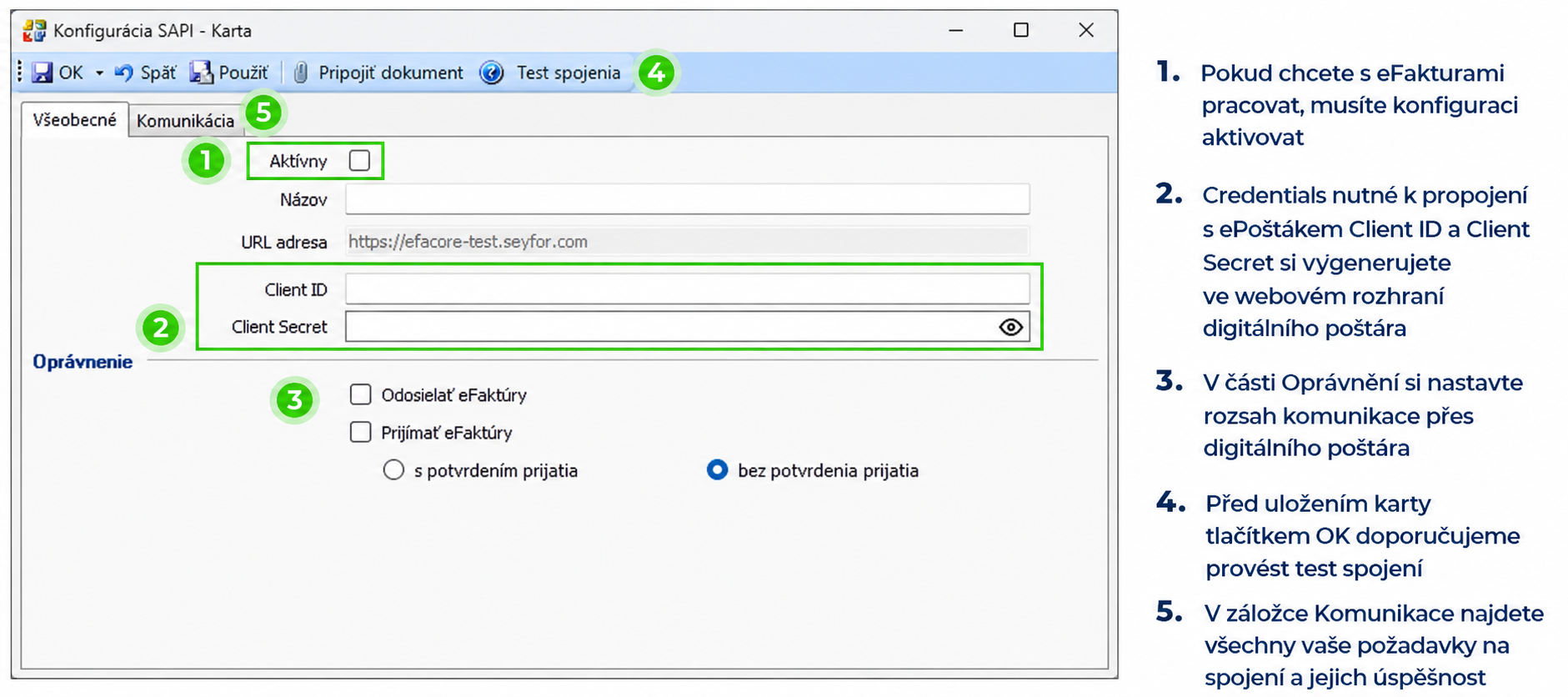

Then click Test connection and, if everything is correct, save the card by clicking OK.
After this, go to the Invoicing / eInvoice menu, where two new lists are available:
eInvoices to send
eInvoices to receive
Sending eInvoices
Your customer will receive an eInvoice sent using the procedure below in Peppol BIS XML format, including all invoice details, line items, and attachments. The Financial Administration will also receive the data required by the VAT Act, including information about the type and price of the goods.
Automatic sending will be available from version 1.17.11.
Information to include on eInvoices
An issued invoice must include the recipient’s DIČ; it cannot be sent without this information. Invoices therefore cannot be delivered this way to individuals who do not have a DIČ.
The Financial Administration recommends that the Issue date match the date the invoice is handed over to the delivery service. This should be taken into account in your internal document approval process.
Related documents, such as a delivery note or acceptance report, can be attached to an invoice as a PDF, TXT file, or image; they will then become part of the outgoing Peppol BIS XML. The total file size must not exceed 100 MB. However, this solution does not provide automatic confirmation of the delivery note by the customer, so you will need to arrange confirmation separately.
Manually sending an eInvoice
Creating and sending an eInvoice is a follow-up step after issuing a document as usual: an invoice, internal document, cash document, or bank document, using the methods you are familiar with in Money ERP, such as an automatic process, copying another document, or any other method you normally use.
A new eInvoice button is available above the Issued/Received Invoices, Internal Documents, Cash Documents, and Bank Statement Items lists. Use it to move documents selected for export to the eInvoices to send list. This starts the validation process and generates the Peppol BIS XML file. The original document is locked at the same time.
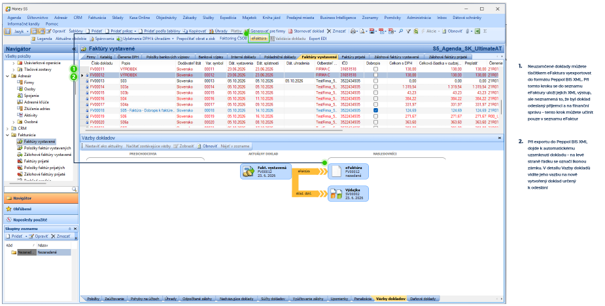

A newly generated XML eInvoice will appear in the eInvoices to send list, with the same number as the source issued invoice.
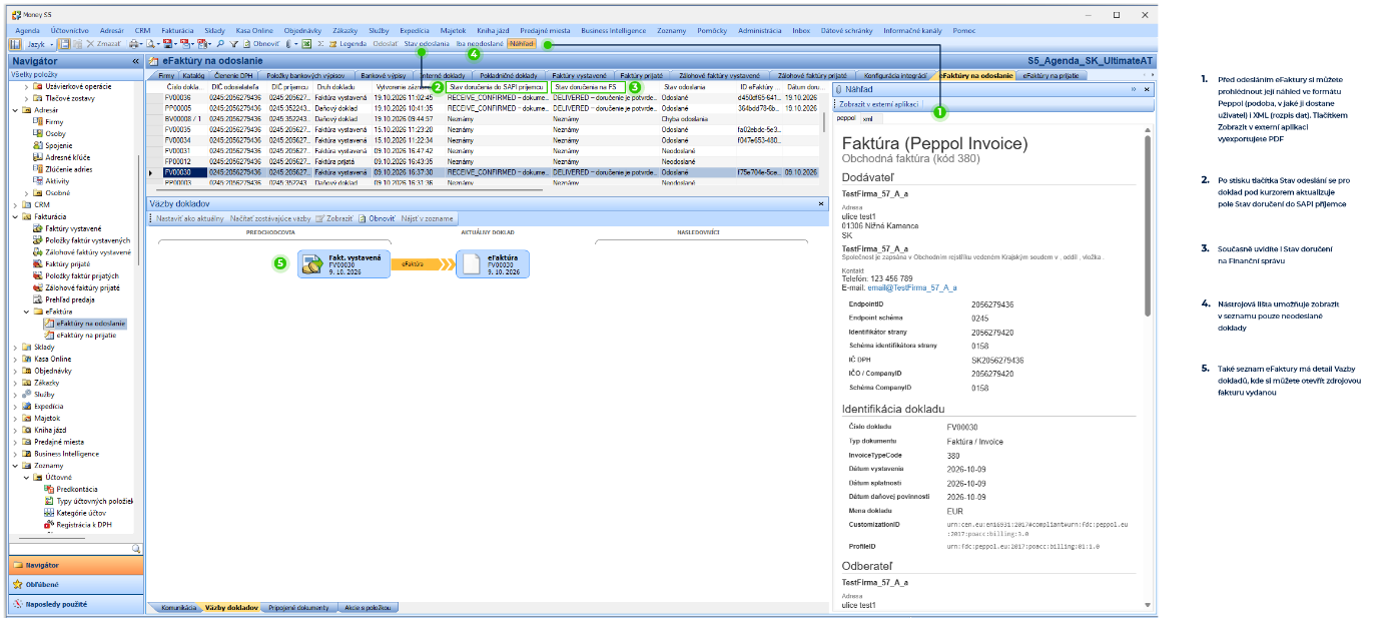
You can check an eInvoice that has not yet been sent by clicking Preview, which displays its structured Peppol BIS XML format on the right-hand side of the screen. For comparison with the original document, a readable HTML preview is also available and can be exported manually to PDF (from version 1.17.11).
If everything is correct, click Send. This forwards the eInvoice to the digital postal service provider.
You can then check delivery results in the eInvoices to send list by clicking Delivery status. This updates the document status, and one of the following statuses appears in the Delivery status to recipient SAPI column:
Accepted – the document is valid and has been accepted by the digital postal service provider
Sent – the document has been sent
Receive confirmed – the document has been received, but delivery to the recipient has not yet been confirmed
Delivered – delivery has also been confirmed by the customer
Failed – delivery failed
Receiver not found – the recipient is not registered in the Peppol network, so the invoice could not be delivered

Automatic sending
Batch sending eInvoices using automated functions will be available from version 1.17.11.
Working with the eInvoices to send list
If you need to cancel or correct an invoice that has already been sent, you must create a corrective document because a sent invoice cannot be sent again.
However, if you find an error in the XML format before sending the document to the Financial Administration, you can delete the document exported to Peppol BIS XML from the eInvoices to send list. This unlocks the source document so you can correct it and generate a new XML file. The corrections you can make depend on the access rights of the signed-in user.
Below the list, you will find the Document Links details, where you can double-click to view a related invoice.
Receiving eInvoices
After you register with the Financial Administration, suppliers that are VAT payers will send you documents through the digital postal service provider. In Money ERP, invoices are added to the eInvoices to receive list and wait for review. You can handle them in the following ways:
Accept the invoice manually or automatically (from version 1.17.11) and enter the document in Money ERP:
either by generating it directly from the eInvoice,
or, from version 1.17.11, by creating a related document in the Received Invoices list in the usual way (for example, by copying a purchase order) and then linking it to the received eInvoice.
Reject the document and notify the relevant supplier outside the digital postal service provider and the Peppol network.
Manually receiving an eInvoice
Download new items to the eInvoices to receive list by clicking Update.
You can then check these documents by clicking Preview. Receiving an eInvoice does not mean that you automatically agree with its contents or are obliged to pay it. If you do not create a related received invoice in Money ERP, you are declining to process and accept the eInvoice.
This does not return the invoice to the sender through Peppol. If you find an error in the document, contact the supplier and ask them to correct it, for example by issuing a corrective document. Depending on the circumstances, you can wait for the correction to be resolved, or process the original invoice in your accounts and request a credit note and a new invoice. If you suspect fraud, do not accept the invoice as valid, document the circumstances, and discuss them with the sender; if communication fails, you can also report the situation to the tax authority. If the invoice is correct but only has an incorrect attachment, you can accept it and then ask the supplier to send the attachment by another means (for example, by email).
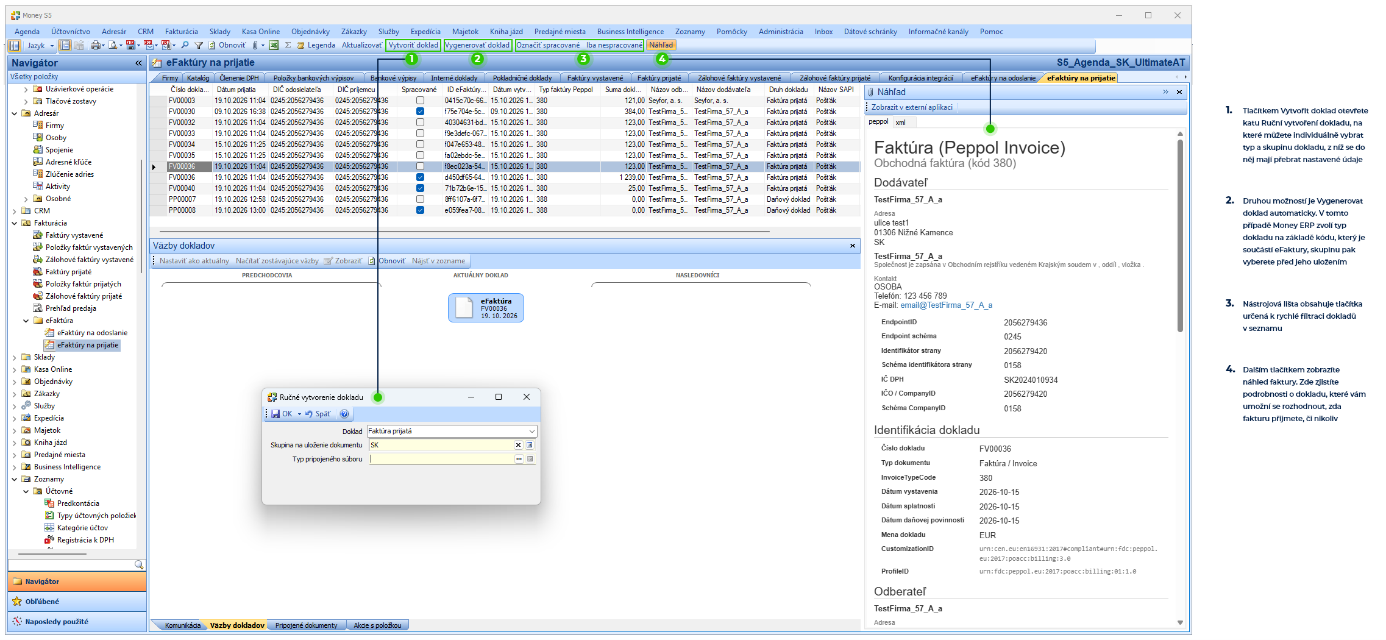
If the invoice looks correct to you, click one of the following buttons:
Generate document – the system automatically creates a standard Money ERP document from the Peppol BIS XML format: a Received Invoice or Internal Document, depending on the document type.
Create document – you can manually select the required document type and group, from which settings including the account assignment and controlling data will be copied.
Only a standard Money ERP document created this way can be processed further, for example, added to a payment order. Subject to your user permissions, you can also edit its items and postings, such as the way VAT is claimed on fuel purchases, or merge multiple lines.
Below the eInvoices to receive list, you will find the Document Links details, which show the link automatically created to the generated received invoice. From version 1.17.11, you will be able to manually link an eInvoice from the list to a previously saved invoice, for example, one created by copying a received delivery note.
When generating a received invoice from Peppol BIS XML, Money ERP always tries to find a unique match with a catalogue item. If it finds one, the item is set as a stock item; otherwise, it remains unlinked to the catalogue.

Questions and answers
How will self-billing work?
If the customer issues an invoice on behalf of the supplier, they create a received invoice in Money ERP, generate an eInvoice from it, and send it to the supplier through the digital postal service provider. Conversely, if your customer issues an invoice on your behalf, it arrives as an eInvoice in the eInvoices to receive list, where you can create an issued invoice from it.
How do you provide received and sent eInvoices to an external accounting firm?
If you currently provide invoices to an external accounting firm, for example, by exporting them from Money ERP, you can continue working together this way after introducing eInvoicing. Peppol BIS XML will also be available as a supported export format.
If you use Seyfor Digitálny Poštár, you can also grant the external accounting firm access to its web portal, where it can download received eInvoices. Sent eInvoices can be exported directly from Money ERP.
The specific method of transferring documents depends on the accounting system in use and the existing arrangements.
How will using iDoklad and Money ERP at the same time work?
A company can have only one digital postal service provider for receiving eInvoices. If invoices are received through iDoklad, they must then be transferred to Money ERP for posting. Multiple providers can be used for sending, so invoices issued in Money ERP can be sent through Seyfor AP.
How will eInvoices be archived for the statutory 10-year period?
The requirement to retain invoices for 10 years remains in force. Received Peppol BIS XML files are saved in the eInvoices to receive list and, after a received invoice is created, remain attached to the Money ERP document. XML documents can therefore be stored in Money ERP or exported to an external archiving system. Seyfor Digitálny Poštár retains documents for 7 days free of charge by default; longer retention is subject to a fee. Retention by the provider does not replace statutory archiving.
Will I receive a notification when an eInvoice arrives, possibly with the PDF by email?
The Seyfor AP web portal is expected to provide notifications about newly received eInvoices. Sending the PDF itself automatically as an attachment to a notification email is not planned; after receiving a notification, the user will sign in to the web portal. The specific notification channel and availability date have not yet been confirmed. Multiple users can access the web portal.
Can I view and download a received eInvoice as a PDF?
In Money ERP, you can open a readable HTML preview of the XML in the eInvoices to receive list and manually export it to PDF. Automated export of this preview to PDF through automated actions is not planned. In the Seyfor Digitálny Poštár web portal, downloading the XML and a visualised PDF is planned for the future.
Can I send a received eInvoice PDF for external approval before creating a received invoice?
Automatic export of a received eInvoice from Money ERP to PDF for external approval is not currently planned. One possible integration scenario, for example, is for an external system to retrieve the Peppol BIS XML from the digital postal service provider and transfer the document to Money ERP after approval. The specific technical integration must be assessed individually.
Can automatic sending be configured so that no eInvoices remain unsent in Money ERP?
The recommended approach is to configure an automated action to generate and send eInvoices (from version 1.17.11). This reduces the risk of a document remaining unsent. Set up the specific process and checks according to your company’s procedures.
Will eInvoicing affect existing API integrations and user-defined columns?
Based on the information available, we cannot confirm the impact on specific customer API integrations and user-defined columns. Each case should be reviewed individually with Customer Support.
Can eInvoices from an online store (for example, Shoptet) be sent automatically?
If your online store uses an existing integration to generate orders in Money ERP, from which invoices are then created, you can use the automatic eInvoice generation and sending features for those invoices from version 1.17.11. If completed invoices are sent to Money ERP from an external system, the invoices must be imported into Money ERP every day because the law requires documents to be sent to recipients on their issue date. The specific integration options for Shoptet depend on the integration in use and need to be verified.
How will the existing automatic sending of PDF or ISDOC files by email change?
The existing email sending method can remain in place, but on its own it does not replace the mandatory sending of eInvoices in Peppol BIS XML format through the Peppol network for documents covered by the statutory requirement.
Can a recipient’s availability in Peppol be checked before sending?
Money ERP is designed to check whether the recipient is available in the Peppol network each time a document is sent. If the recipient is not registered, the digital postal service provider returns the RECEIVER_NOT_FOUND status. Bulk filtering of the entire invoice list by customer registration status has not been confirmed.