


The web form is launched automatically during installation.
Completing the configuration
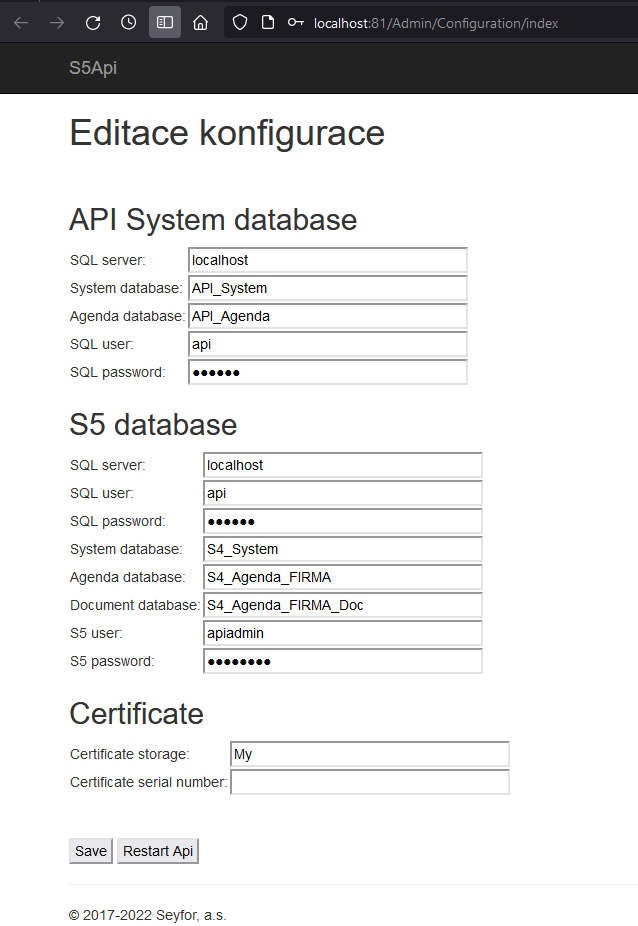
API System database section
SQL server
Address of the server and instance where the database for the API and Money are located. Usually, everything is on one server and instance.
System database
Name of the API agenda and System database. Choose any name you like; we recommend a format such as API_System.
SQL user
SQL user for the API database and Money database. For the API, we recommend creating a separate, dedicated user. The user must have administrator privileges. Use a sufficiently long and secure password, for example, with lowercase and uppercase letters and numbers, but do not use special characters such as #$“<>/@ or similar.
S5 user and password
This is the Money user and its password. We also recommend using a separate account with administrator privileges.
System database
The API contains a list of clients, modules, controllers and endpoints, access rights settings, migration history, etc.
The API database can also be created in MS Management Studio in advance (empty, with a custom name), and permissions can be added for the SQL user. It is then filled in as part of step 1.
S5 database section
SQL server - address of the SQL server running Money S4/S5
SQL user - SQL server user's login name
SQL password - SQL server user's password
System database - Money S4/S5 system database
Agenda database - Money S4/S5 agenda database
Document database - Money S4/S5 document database
S5 user - Money S4/S5 user login name
S5 password - Money user password for S4/S5
Certificate section
Certificate storage - certificate storage location (enter the word My; this is important for generating PDF files)
Certificate serial number - certificate serial number (used to sign documents with a specific certificate; this does not need to be filled in)
Confirmation
If you confirm the form by selecting Save, the installer will perform the following steps:
verify that the connection to the S5 API database is working
verify that the connection to the Money S4/S5 database is working
verify that the required license for Money S4/S5 (for API operation) is set up
save the configuration to the config.json file
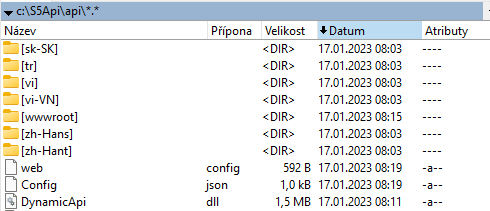
config.json file
You can also make additional configuration changes in the config.json file. After changing this file, you must restart the site in IIS. Typical changes to this file include changing the certificate, pagination, or the maximum query nesting depth (MaxNestingDeptLevel).
If users use the Money Portal, you must change the value of the DisableAccessTokenEncryption variable from false to true. If this is not changed, the Money Portal will not be able to validate the assigned token.
If you have an older config file, the Identity server information has not been required since version 1.14.1 (including for the Money Portal) and can be removed from the config file.
The MaxNestingDeptLevel variable has a default value of 4, which covers typical response requirements. If, for example, you need to query an invoice document, its items, and then follow the items through to the catalog to retrieve the VlastníHmotnost value, you must change this default value to 5.
{
  "Configuration": {
    "SystemDb": {
      "SqlServer": ".",
      "SystemDbName": "API_System",
      "AgendaDbName": "API_Agenda",
      "SqlUserName": "api",
      "SqlPassword": "NABg7MiNblablaNWuysoRgTg1jQrrbbTD7tYZVoblMY="
    },
    "S5Db": {
      "SqlServer": ".",
      "SqlUserName": "api",
      "SqlPassword": "e53YsTokokCkCxATHnenecdDDC4zLOLvRJwng2w395A=",
      "SystemDbName": "S4_System",
      "AgendaDbName": "S4_Agenda_DEMO",
      "DocumentDbName": "S4_Agenda_DEMO_Doc",
      "S5UserName": "api",
      "S5Password": "KzEVfXLZmoje6rX0SUyQ0chjop3UUsitDKGqgPdI5bjk="
    },
    "CertificatePath": null,
    "CertificatePassword": null,
    "CertificateSerialNumber": null,
    "SignCertificateStorage": "My",
    "PrimaryPriceList": null,
    "DiscountPriceList": null,
    "PrimaryPriceListCode": null,
    "DiscountPriceListCode": null,
    "RunMigrations": true,
    "DisableAccessTokenEncryption": true,
    "AccessTokenLifetime": 10800,
    "EnableBankAccountStatement": true,
    "EnableStandaloneDocumentItem": true,
    "DefaultPageLimit": 1000,
    "MaxNestingDepthLevel": 6,
    "EnableRestApi": true
 }
}
web.json file
If you do not need documentation for your API's REST API (Swagger), leave the web.config file at its default settings. To display Swagger and GraphQL documentation, you must add an aspNetCore section to the web.config file to ensure it displays correctly.
The aspNetCore section also includes the option to save a log to make it easier to read errors that occur when starting S5API from IIS. In the config, change stoutLogEnabled from false to true and start the API in IIS. A log file will be created in the log directory in the folder containing S5API (create the directory manually if necessary).
For GraphQL documentation to display correctly, you must install node.js (https://nodejs.org/dist/v20.18.0/node-v20.18.0-x64.msi) and then restart the device.
New installations use the following value for modules: <add name=“aspNetCore“ path=“*“ verb=“*“ modules=“AspNetCoreModuleV2“ resourceType=“Unspecified“ />. Older installations used only AspNetCoreModule. For some configurations, you may need to keep this value in its older form.
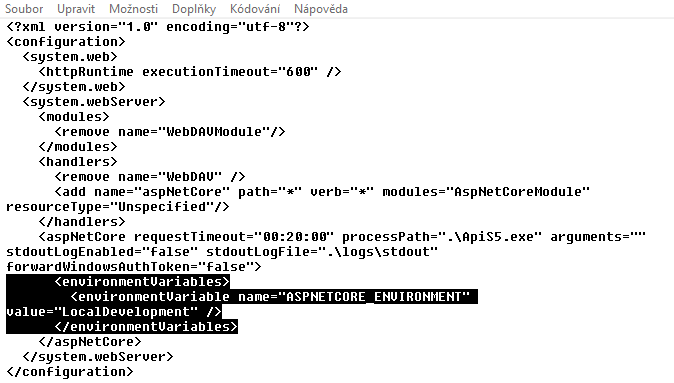
<?xml version="1.0" encoding="utf-8"?>
<configuration>
  <system.web>
    <httpRuntime executionTimeout="600" />
  </system.web>
  <system.webServer>
    <modules>
      <remove name="WebDAVModule" />
    </modules>
    <handlers>
      <remove name="WebDAV" />
      <add name="aspNetCore" path="*" verb="*" modules="AspNetCoreModule" resourceType="Unspecified" />
    </handlers>
    <aspNetCore requestTimeout="00:20:00" processPath=".\ApiS5.exe" arguments="" stdoutLogEnabled="false" stdoutLogFile=".\logs\stdout" forwardWindowsAuthToken="false">
      <environmentVariables>
        <environmentVariable name="ASPNETCORE_ENVIRONMENT" value="LocalDevelopment" />
      </environmentVariables>
    </aspNetCore>
  </system.webServer>
</configuration>