Download
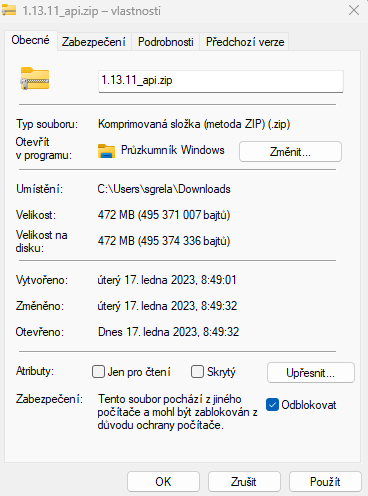
Sign in to the Support Portal and download the S5API installation file. The API version must match the specific Money version; different versions of Money and the API cannot be combined. The package is usually named 1.17..5_api.zip, where the number indicates the version for which S5API is intended. This .zip package contains everything needed for installation and updates.
If you have an API version older than 1.13.11, we recommend performing a new API installation using the wizard and then reusing the old config and existing databases. In IIS, delete the S5API website and application pool, and let the wizard create new ones. Keep the databases and config (do not enter new ones on the website) and just copy config.json to the new directory.
If you already have the API installed using the new wizard (from version 1.13.11 onward) and it is in the new directory structure, you can update directly to the latest version (just like Money); there is no need to update sequentially through each version. For example, if I have API 1.13.11 and update to 1.14.5, I can use the SetupWizard from this latest version and do not need to install version 1.14.1 beforehand.
Unblock
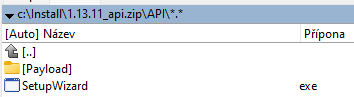
Unblock the package and extract it to a separate temporary folder. Then run the file SetupWizard.exe.
Selection
Select either a new API installation or an update to an existing one.
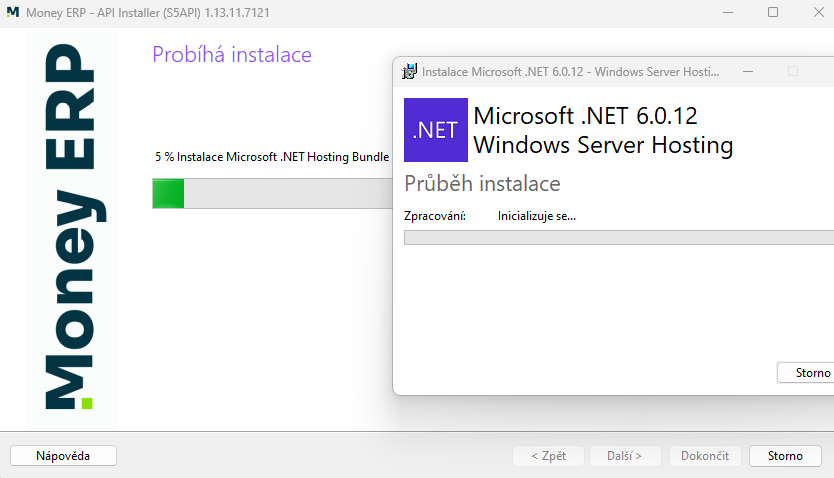
Basic configuration
Complete the basic website configuration.
Website name - The name of the website to be created in IIS under Websites and Application Pools. You can have multiple websites, for example, S5Api and S5APITEST
Local - Check this box. This setting indicates whether the API will be installed on localhost. You can add other addresses in IIS.
Ports - Select available ports; 81 and 82 are selected by default. A self-signed certificate is installed for https; you can then use it or replace it with your own in IIS.
Website path - The name of the directory where additional directories and files required to run the API will be installed. If you have multiple API installations, each API instance must have its own directory. You can choose any directory name, for example, S5APi or S5API_Agenda1.
If a website with the same name already exists in IIS, the system displays an error message. In that case, choose a different website name or delete the website from IIS (you must delete it from both the Websites list and the Application Pools list).
Completion
Confirm the entered details by clicking Next and then Finish.
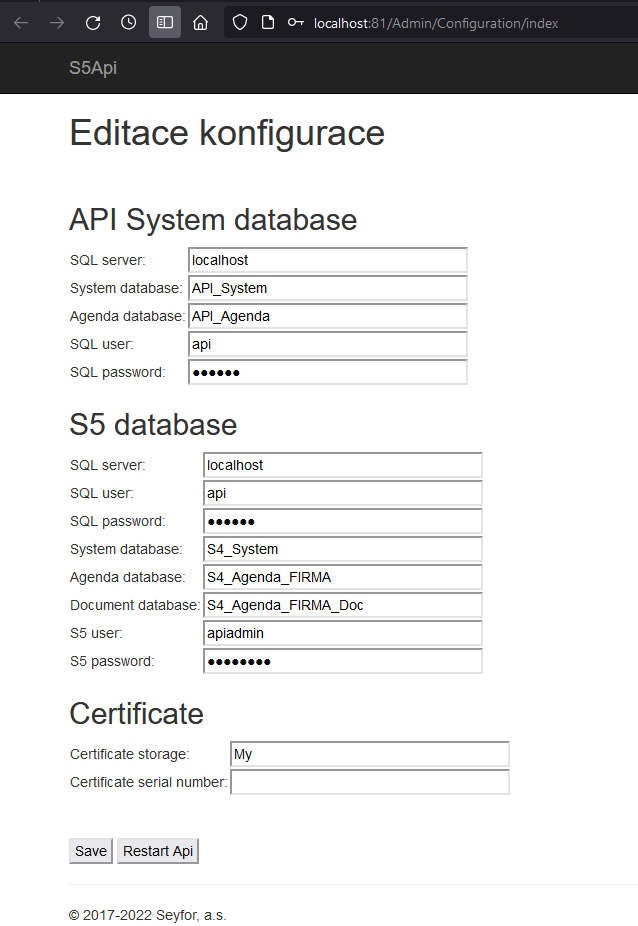
The installer will then open the web page http://[adresa API včetně portu]/Admin/Configuration/index, where you must configure the settings.
Configuration
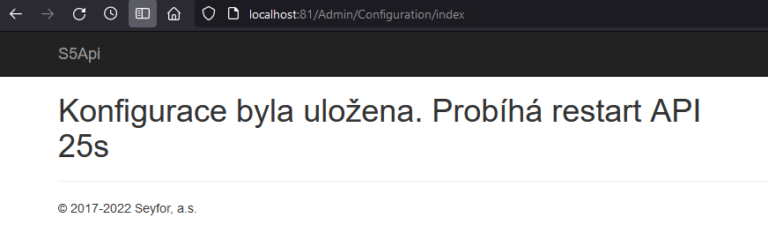
Fill in the details according to the form (see the example below or in the next chapter) and click Save.
Use a sufficiently long and secure password, for example, one containing lowercase and uppercase letters and numbers, but do not use special characters such as #$“<>/@ or similar.
What happens
The installer performs these steps:
creates a website in IIS with the specified name
creates the associated application pool in IIS
creates bindings for the website in IIS (for http and https) on the specified ports
installs a certificate in IIS (for https connections)
adds the same certificate to the list of trusted certificates
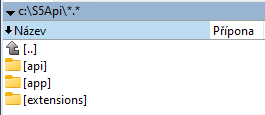
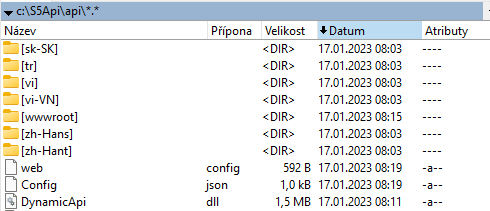
creates directories and copies the necessary files (see the two images below)
the next page – installation completion
Done
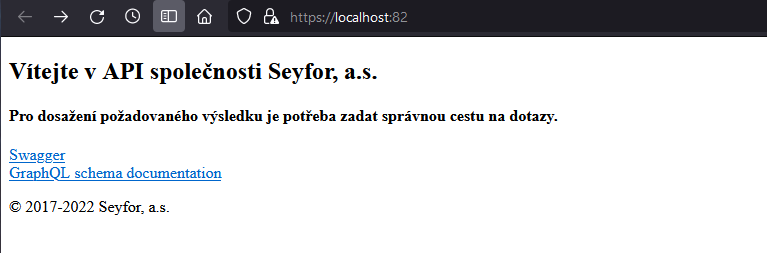
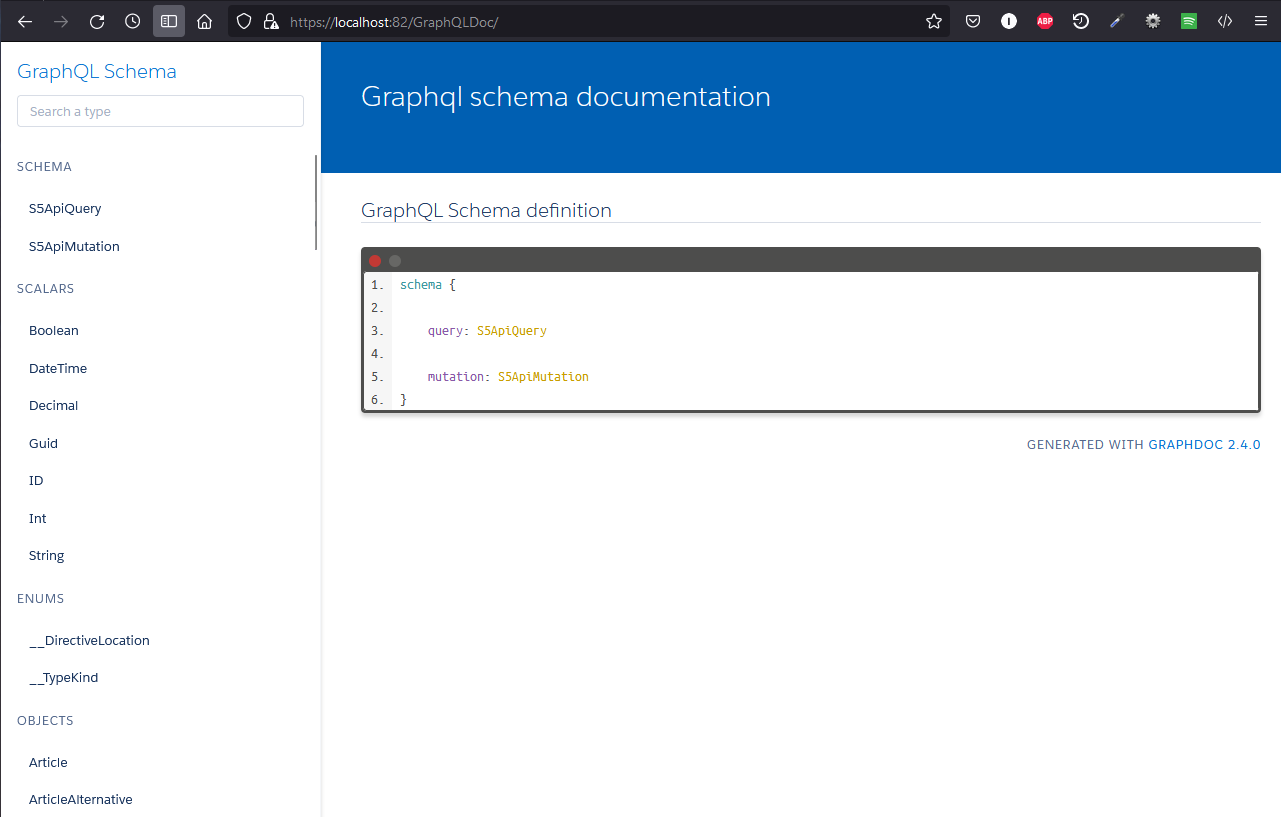
The default page provides links to the documentation and GraphQL. To display the documentation, you need to edit the web.config file.